Zebra Plastic Card Printers.

Zebra Plastic Card Printers come in a variety of styles and price ranges, including single-sided printers, dual sided printers, and security printers

Healthy Solutions for Healthcare.

The healthcare industry benefits from barcoding. Barcoding enhances patient safety and operational efficiency.

Seagull Scientific Products

Seagull Scientific BarTender is an industry-leading label design and barcode software. Seagull Scientific also develops true Windows printer drivers for bar code and thermal printers.

MC 9190G

The Ability To Satisfy Your Company Software Requirements.

Wireless Broadband

The unrivalled Motorola portfolio of Point-to-Point (PTP), Point-to-Multipoint (PMP), and Mesh Wide Area Network (MWAN), WLAN and VoWLAN solutions make governments, enterprises, and service providers more agile by helping them deploy voice, video, and data applications right where they need them.

Showing posts with label RFID. Show all posts

Tuesday, 11 January 2011

BluePiano: A New Android Bluetooth Input Method

BluePiano Bluetooth Input Method for Android
The input method BluePiano extends Android with Bluetooth data acquisition.

This new input method provides a Bluetooth-enabled soft-keyboard. This soft-keyboard captures Bluetooth data and forwards the received data to input fields of arbitrary apps. The data appears as entered by the user (watch the video on YouTube).

BluePiano is typically used for barcode scanning with external Bluetooth barcode-scanners or for generic data acquisition tasks (e.g. to capture raw external GPS or medical device data). English, German, French, Russian and Swedish keyboard layouts are available.

BluePiano is easy to use and provides you with connectivity feedback in the notification bar. For backup purposes BluePiano is also able to scan barcodes using camera barcode scanners (using the built-in or an external camera scanner app).

BluePiano works with all Bluetooth SPP devices (Bluetooth devices supporting the Serial Port Profile, RFCOMM). Special Android-enabled bar code scanners are NOT required. HID devices are not supported.

Video Tutorial


Installation

Download and install BluePiano from Android Market (see market://search?q=pname:com.tecit.android.bluepiano.demo). After installation a wizard guides you through the following steps:
BluePiano Logo
  1. Activate Bluetooth
    See also: Android Settings – Wireless & networks.
  2. Discover your Bluetooth device
    Please note that the Bluetooth device must be “discoverable”. See also: Android Settings – Wireless & networks – Bluetooth settings.
  3. Pair your handset with your Bluetooth device.
    You need to enter the pairing PIN on your handset. See also: Android Settings – Wireless & networks – Bluetooth settings.
  4. Adjust the Bluetooth device as input device for BluePiano.
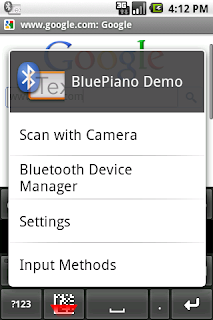
    All data received from this input device will be transformed and treated like any other manual input. You may also long tap the ?123 key on the BluePiano keyboard and then invoke Bluetooth Device Manager.
  5. Enable the input method BluePiano
    In order to use the new soft-keyboard you need to enable it in Android Settings. Confirm the security question. See also Android Settings -- Language & keyboard.
  6. Activate the input method
    Do this by long-tapping on any text field of any app. In the upcoming menu select Input Method and check the BluePiano input method. Use the same method to activate your default keyboard again.
  7. Finished!
    Now read a barcode with the external Bluetooth device (e.g. barcode scanner). As soon as the data is received by BluePiano it is entered into the current edit field. As an alternative you may press the barcode key on the BluePiano keyboard: The built-in camera scanner is invoked, the barcode is decoded and the data is entered automatically into the active edit field.
BluePiano Settings - Manual

Configure BluePiano using the installed wizard or navigate to Android Settings -- Language & keyboard and then select BluePiano.

As an alternative you may long-press on the ?123 key of the BluePiano keyboard. In the upcoming option menu select the required function.


Keyboard Options 

BluePiano Settings
  • Data Prefix
    Use the placeholders ${ENTER},${TAB}, ${BACKSPACE}, ${DOWN},${UP}, ${LEFT} and ${RIGHT} to control the cursor or input focus before the captured data is inserted into the input field of the current app. The placeholders specified above can be abbreviated with${E}, ${T}, ${B}, ${D}, ${U}, ${L} and ${R}. A multiplier specified immediately after the placeholder (e.g. ${E5}) instructs BluePiano to simulate the specified key n times (5 times the Enter key in this example).
  • Data Suffix
    Use the same placeholders as above to control the cursor or input focus after captured data was inserted into the input field of the current app.
  • Camera Scanner
    The default setting “Internal Scanner” reads bar-codes using the camera bar-code scanner integrated into BluePiano. If you prefer to select the camera scanner to be used each time, select Always ask. If a specific app is selected, the software always uses exactly this camera scanner app without asking.
  • Search Key Function
    This entry specifies the action when the hardware search key is pressed (this key is usually marked with a magnifier symbol, it is also available on the hardware keyboard): Invoke Camera Scanner opens the camera scanner when this key is pressed (you do not need to activate the soft-keyboard beforehand). In this case the search key acts as hot-key for barcode scanning.
    Choose Do nothing if you do not want to change the default behavior of the standard search key.

Bluetooth Options

BluePiano Settings Part 2
  • Manage Device
    Use this function to adjusted the Bluetooth input device. Keep in mind that the device must be paired before it can be used. See also: Android Settings – Wireless & networks – Bluetooth settings. This function is only enabled if the Bluetooth connection is not suspended.
  • Suspend Connection
    Temporarily disable BluePiano Bluetooth connectivity.
  • Suspend Timeout
    If a Bluetooth device is unavailable for more than the specified number of seconds (e.g. out of range or switched off) it will be suspended. If a device is suspended you can’t capture Bluetooth data with BluePiano. A notification is displayed and you need to re-activate the device manually. The default timeout is 120 seconds (2 minutes).
  • Vibrate on Error
    If activated, your handset vibrates in case of Bluetooth or connection errors.
  • Disaster Recovery
    Some handset models are using buggy Bluetooth stacks (firmware with Bluetooth SPP errors). This SPP bug makes it impossible to connect to a Bluetooth SPP device. If you experience this problem we recommend rebooting your phone, to restart Bluetooth manually or to instruct BluePiano to restart the Bluetooth service automatically. Please note that until now no reliable solution to this problem is available.

General Options

  • User Manual
    Link to this blog-post.
  • YouTube videos
    Link to TEC-IT’s YouTube channel.
  • License Check
    Checks and displays your current license for BluePiano.
  • About
    Displays copyright and credits for 3rd party software.

Feedback Please!

Feedback and feature requests are highly welcome. Just contact TEC-IT.

Wednesday, 1 September 2010

Barcode Scanner Keyboard for Android

Type Or Scan Barcode Keyboard

Barcode Keyboard - +TEC-IT's new soft-keyboard for Android offers integrated camera scanner support. Using this keyboard you are able to scan barcodes directly into any app, application switching or copy/paste is no longer required.

After the application was installed, this Barcode Keyboard  can be activated in Android Settings -- Language / keyboard.
Once activated you are still able to key-in text manually using the hardware or software-keyboard of your Droid. But whenever you need to enter the data of a barcode (e.g. an EAN or UPC product code, a QR-Code, ...) just press the barcode key or long press the num/alpha modifier. A camera scanner app (choose between the built-in or an external scanner) is opened, the barcode is decoded and the Barcode Keyboard enters the barcode data automatically into the current input field. No manual typing is required.

User Manual

NEW: A complete and updated user manual in German and English is available on TEC-IT's web site!

Enable Barcode Keyboard

After installing Barcode Keyboard from Android Market (Market link: market://search?q=pname:com.tecit.android.barcodekbd.demo) you need to enable the keyboard on your Droid (the keyboard must be activated too, see below!):
  1. Navigate to Android Settings -- Language / keyboard
  2. Check Barcode Keyboard and confirm the security warning

Barcode Keyboard Settings

  • Data Prefix
    Using the placeholders ${ENTER}, ${TAB}, ${BACKSPACE}, ${DOWN}, ${UP}, ${LEFT} and ${RIGHT} you can control the cursor or input focus before the barcode data is inserted into the input field of the current app.
  • Data Suffix
    Use the same placeholders as above to control the cursor or input focus after the barcode data is inserted into the input field of the current app.
  • Camera Scanner
    If you prefer to select the camera scanner to be used each time, select Always ask. If a specific app is selected, the software always uses exactly this camera scanner app without asking.
  • Search Key Function
    This entry specifies the action when the hardware search key is pressed (this key is usually marked with a magnifier symbol, it is also available on the hardware keyboard of a Motorola Droid/Milestone or Google G1): Scan Barcode Now immediately opens the camera scanner when this key is pressed (you do not need to activate the soft-keyboard beforehand). In this case the search key acts as hotkey for barcode scanning.
    Choose Do Nothing if you do not want to change the default behaviour of the standard search key.
Activate the Barcode Keyboard
  1. Open some app which uses a text input field (e.g. Gmail, then Compose a new email).
  2. Long-tap in some input field like To
  3. A menu opens, select Input method
  4. Choose Camera Keyboard

90 Seconds Video Demonstration


Update Available (V1.4 - October 2012)

In addition to numerous other improvements the updated version of the bar code keyboard supports the following keyboard layouts (The layout of the barcode keyboard is automatically adjusted to the system settings):
  • English
  • German
  • French
  • Russian
  • Spanish - new
  • Swedish
In addition the placeholders ${ENTER}, ${TAB}, ${BACKSPACE}, ${DOWN}, ${UP}, ${LEFT} and ${RIGHT} can now be abbreviated with ${E}, ${T}, ${B}, ${D}, ${U}, ${L} and ${R}. You can specify a multiplier immediately after the placeholder (e.g. ${E5}). This instructs the barcode keyboard to simulate the specified key n times (5 times Enter key in the example above).

Your Feedback Please!


Feedback and feature requests are highly welcome. Just contact TEC-IT.

P.S.: +TEC-IT  offers also another Android App named GetBlue. This app provides automated data collection and data entry for all apps. Connects to TCP RFID and Bluetooth SPP barcode scanners!

Tuesday, 29 June 2010

Android Bluetooth Reader, Keyboard Wedge

In the past few months TEC-IT developed an Android App for data acquisition with Bluetooth and TCP. The good feedback of the Android community motivated us to further enhance this app. The result: an universal data acquisition app including keyboard wedge functionality.

The app is named GetBlue. The final version is available as slightly restricted freeware as well as commercial application. Here are the highlights:
  • Android Keyboard Wedge / Virtual Keyboard:
    Captured device data can be entered into any application.
  • Supported Input Devices: 
  • Bluetooth SPP/RFCOMM, TCP (e.g. RFID controllers), HTTP applications and camera scanners apps like the ZXing Barcode Scanner.
  • Supported Data-Sinks:
    Bluetooth SPP/RFCOMM, plain TCP, HTPP via Get and Post, Google Docs Spreadsheets, File.
  • Data Acquisition Proxy / Data Switchboard:
    Acquired data can be forwarded to any supported data-sink.

Universal Data Acquisition App

Use GetBlue like an universal data switchboard: capture data from a data-source and forward it to an arbitrary data-sink. As an example you can adjust GetBlue to collect data from a Bluetooth barcode scanner and forward this data immediately to a Google Docs spreadsheet (refer to the drawing).

What is a Virtual Keyboard?

A virtual keyboard replaces the standard soft-keyboard of Android. Captured data is always made available to this virtual keyboard. Thus, data acquired from a Bluetooth barcode scanner or an RFID tag can be entered into any application which is accepting user input. This works completely independent from the selected datasource and the target app.

Call for Requests!

The internals of GetBlue are very simply to extend (e.g. new protocols, new devices, ...). Just let us know your requirements. Whenever possible we will provide you with a solution. Leave us a comment or send an email to office@tec-it.com.

Free Trial!

Install GetBlue using Android Market on your handset. Search for GetBlue manually or use this link: market://search?q=pname:com.tecit.datareader.android.getblue.demo.

We are looking forward to hearing from you!

Monday, 15 February 2010

New: Videos For Data Acquisition Software

TEC-IT announces the availability of the first product videos for the data acquisition software TWedge.

What is TWedge?
TWedge extends arbitrary databases and applications with flexible real-time data collection. Modifications of the target systems are not required! Use this software wedge with RS232, serial, Bluetooth, USB and TCP/IP interfaces. Captured data is forwarded immediately to databases, applications and ERP systems like SAP R/3. Choose between direct ODBC database access, file access or keystroke simulation (keyboard wedge).

In the first video the usage of the software wedge TWedge is explained.

The second video shows how to use the scripting features of TWedge. The scripting features enable you to modify the device data, to communicate with devices in a bi-directional way, to configure hot-key and timer-based functions and to perform basic user-interactions.

More information about TEC-IT products you will find on our youtube channel TECITSoftware.

Tuesday, 2 February 2010

Serial (RS232), TCP/IP, USB and Bluetooth Software Wedge

The service release V2.4 of TWedge (software wedge, keyboard wedge, Bluetooth wedge, TCP wedge) is now available for download. In version 2.4 an issue with failed TCP/IP and Bluetooth connections was fixed.

Check it out! Download Software Wedge.

Monday, 1 February 2010

Software for Mobile Data Acquisition

TEC-IT released the new version of TWedgeCE - a software wedge for mobile devices.

What is TWedgeCE?

Windows CE Software WedgeTWedgeCE captures data from external devices and translates them into virtual keystrokes. It acts as middleware between arbitrary data acquisition devices (like scales, gauges, barcode scanners, RFID controllers, etc.) and software applications like Pocket Excel or Mobile Internet Explorer. TWedgeCE operates in the background of the mobile device and can be configured easily via simple configuration files.

Highlights:

Version 2.0 is able to work with devices via the following interfaces:
  • Serial / RS232
  • Bluetooth (native Bluetooth, no virtual COM ports required!)
  • TCP/IP (client mode)
  • TCP(IP (server mode)
  • UDP (client mode)
TWedgeCE is able to check device connectivity (I-Am-Alive), it recovers lost connections automatically (this is especially of interest for WLAN or Bluetooth connections) and finally introduces an anti-jitter feature.

Availability:

Windows Mobile Software WedgeThe mobile software wedge is available for the following platforms:
  • Pocket PC 2003 SE (Second Edition)
  • Windows CE 5 / Embedded CE 6 (ARMV4I)
  • Windows Mobile 5
  • Windows Mobile 6

Related Software:

Also check out the universal data acquisition software TWedge for Windows operating systems. TWedge offers device connectivity, keystroke simulation, direct database access, direct file access and complete scripting features!

Free Download:

Mobile Software Wedge TWedgeCE, Universal Software Wedge TWedge (for Microsoft Windows)

Monday, 4 January 2010

Think RFID is the answer? Read this!

Call me paranoid and yes I *do* own a tinfoil hat thankyouverymuch. I've always envisioned some badguy/badgal sitting outside a DC subway stop scanning all the federal ID badges that popped up above ground. CLONE!Now comes word of this RFID emulator thingie.Hand me my hat...

Wednesday, 11 November 2009

TWedge V2.3 Release Candidate

TWedgeV23RCWe are announcing the new version of the data acquisition software / software wedge TWedge.
TWedge is smart middleware which connects to arbitrary devices via RS232 (COM port), Bluetooth (native!) and TCP/IP. The received data is either simulated as keystrokes, stored in a file or saved directly into an ODBC database.

Improvements

  • 0-byte awareness
    Previous versions clipped received or transmitted data after an 0x00 in the data stream.
  • HEX data display
    Incoming data can be displayed as HEX string for better debugging
  • Silent mode
    Device data display can now be turned off

Release Candidate Download

Download data acquisition software TWedge (MSI setup file for Windows). 

Monday, 9 November 2009

Reading RFID Tags with TWedge


TEC-IT's data acquisition software TWedge allows an easy implementation of RFID controller protocols. TWedge can be adjusted to communicate with RFID controllers in a bi-directional way. Reading and processing tag identifiers is as easy as reading/writing tag data!

The following TWedge script can be used to read RFID Tag IDs from EMS Datalogic RFID Controllers (utilizing the ABx Fast Protocol).

The following script performs the following functions:
1) Query the RFID controller by pressing the hotkey

2) When data is received test it for a valid response

3) Display data in MessageBox

Try it yourself - Download the software wedge for free! Keep in mind: V2.3 or higher is required!

Global Helper Functions

HEX Conversion

function encodeHex(input) {
hexOutput = "";
for (i=0; i < input.length; i++) {
hexOutput = hexOutput + ' ' + Dec2Hex(input.charCodeAt(i));
}
return hexOutput;
}

function encodeDec(input) {
decOutput = "";
for (i=0; i < input.length; i++) {
decOutput = decOutput + ' ' + input.charCodeAt(i);
}
return decOutput;
}

function Dec2Hex(Decimal) {
var hexChars = "0123456789ABCDEF";
var a = Decimal % 16;
var b = (Decimal - a)/16;
hex = "" + hexChars.charAt(b) + hexChars.charAt(a);
return hex;
}

Test for TAG ID

function IsRFIDTagID (data)
{
// 0 1 2 3 4 5 6 7 8 9 10 11 12 13
// 02 02 00 09 0F E0 04 01 00 35 7F 5E 19 03

return data.length >= 14
&& data.charCodeAt(0) == 2
&& data.charCodeAt(1) == 2
&& data.charCodeAt(4) == 15;
}

Test for TAG Response

function IsRFIDReadResponse(data)
{
// 0 1 2 3 4 5 6 7 8 9 10
// 02 02 00 06 05 31 32 33 34 35 03

return data.length >= 6
&& data.charCodeAt(0) == 2
&& data.charCodeAt(1) == 2
&& data.charCodeAt(4) == 5;
}

Send RFID READ Request

var escZero = "\\0";
var escBack = "\\\\\\\\";

function SendRFIDReadRequest ()
{
var request;
// read 5 Bytes from address 1 with timeout 2000 msec
// 02 02 00 07 05 00 01 00 05 07 D0 03

//request = String.fromCharCode ( 2, 2, 0, 7, 5, 0, 1, 0, 5, 7, 208, 3 );
request = "\x02\x02" + escZero + "\x07"
+ "\x05" + escZero + "\x01" + escZero + "\x05"
+ "\x07\xD0\x03";

// MessageBox ('WriteToDevice: ' + request);
WriteToDevice (request, 2000);

}

Get RFID Response Data

function GetRFIDDataFromResponse ( data )
{
// 0 1 2 3 4 5 6 7 8 9
// 02 02 00 06 05 31 32 33 34 35 03
var len;
var out = "";
if (data.length >= 5)
{
len = data.charCodeAt(2) * 256 + data.charCodeAt(3) - 1;
for (i=0; i< len; i++)
{
out = out + String.fromCharCode(data.charCodeAt(5 + i));
}

//MessageBox ('Len: ' + len + ', ' + out);
return out;
}
return null;
}

OnData Script

if ( IsRFIDTagID (DATA) )
{
SendRFIDReadRequest ();
}
if ( IsRFIDReadResponse (DATA) )
{
MessageBox (encodeHex(DATA) + ' (' + DATA.length + ' Bytes)');
MessageBox ('Nutzdaten: ' + GetRFIDDataFromResponse (DATA));
}

HotKey Script

SendRFIDReadRequest ();

Wednesday, 20 May 2009

How to Suppress Duplicate Barcodes or RFID Tags with the Software Wedge?

The Problem:

Maybe you are familiar with this scenario: You are connecting a barcode scanner, an electronic scale or an RFID reader to your computer. When capturing data it turns out that the device is sending identical values multiple times. This happens if the user scans a barcode repeatedly, a scale sends the weight of the item periodically or if a RFID reader reports the value of a RFID tag at regular intervals.

The Solution:

TWedge provides a very flexible and elegant solution to this problem. The software wedge can be customized to suppress multiple, identical values easily: Just save the last data value received from the device and compare it with the current one. Forward the device data to target application only if these values are not identical. Here is the script:

The Software Wedge Script:

OnStart() is the perfect place to initialize the last received data value (sLastData) with a null value. OnStart is executed when device communication is initialized (e.g. the serial port was opened):
// This script is executed whenever communication is started.
// Use it to perform one-time initializations like opening a file or a database connection.
// message informaing the user what this sample is good for
MessageBox("This script demonstrates how to suppress duplicate data packets from a device.\n\nSometimes devices like barcode scanners or RFID controllers are sending the same data packet multiple times. This very useful feature just forwards unique values to the target application.");
sLastData = null; // initialize with a value which is never received from a device
nDuplicates = 0; // set the number of duplicates to 0

OnData() is executed whenever device data is received. Compare the current data value (stored in DATA) with the last one (sLastData). In this example keystrokes are only simulated if these two values are not identical:

// Check if the current device data is identical to the last one
if (DATA != sLastData)
{
SendKeyStrokes(DATA); // not identical: simulate keystrokes
sLastData = DATA; // set the last value to the current one
nDuplicates = 0; // increment the duplicate counter (for info only)
}
else
{
nDuplicates++; // duplicate received, just display an info-message
NotifyInfo ("Duplicate data received. The value " + DATA + " was suppressed " + nDuplicates + " times");
}

More information as well as the script explained in this post will be available soon on www.tec-it.com.

Monday, 28 July 2008

TEC-IT Barcode Software

Hello!

This is the (official) TEC-IT Blog which is intended to communication with customers of TEC-IT, people which are interested in our software, development plans, future product improvements and so on.

Let me first introduce myself:

Most partners and customers communicate with us (or me) via email or phone, TEC-IT is a typical Internet company. This Blog is just another virtual possibility we will now give a try. And we will see what happens.

Just stay tuned.

Thursday, 24 January 2008

The End Is Nigh

If you're of an eagerly apocalyptic bent, this storyshould give you a little shiver of glee. The UK Ministry of Justice is investigating the use of satellite and radio-wave technology to monitor criminals. Only this time they're not talking about ankle or wrist bracelets, no that technology is yesterday's news. What they'd like to do, if no one minds too terribly much what-what pip-pip, is

Saturday, 12 January 2008

Real ID doesn't make me feel secure. How 'bout you?

So the Feds in their myopic post-9/11 daze want to impose a pass law on us, oops, I mean "real ID". As if the stuff in my wallet is fake. No, the guv'ment just wants us to have yellow stars with us at all times, with us in a huge database they control (and hence us).You'd think a Bar Code Nerd who sells barcode software would be in favor of real ID. Heck, we might sell stuff to Uncle and make

Friday, 14 December 2007

Finally! A good use for RFID

Someone asked me about RFID last night at dinner. I gave my standard response: "Who cares?" reflecting the lack of business opportunity it affords.Well. Now I've found a reasonable use for RFID: a door opener. Not just any door opener but one that can be controlled via one's cell phone or browser!

Wednesday, 24 October 2007

NJ Company Offers "Cost-Saving" Alternative to RFID

Secure Symbology wants to keep your food, your pharmaceuticals , nay your very Homeland Security™ safe! Using barcodes, natch, and "proprietary machines" which run only a quarter million dollars. Each. "Secure Symbology's proprietary machines -- at a cost of $250,000 each -- imprint individual serial numbers on each package and shipping carton, allowing the manufacturer to follow the product on