Zebra Plastic Card Printers.

Zebra Plastic Card Printers come in a variety of styles and price ranges, including single-sided printers, dual sided printers, and security printers

Healthy Solutions for Healthcare.

The healthcare industry benefits from barcoding. Barcoding enhances patient safety and operational efficiency.

Seagull Scientific Products

Seagull Scientific BarTender is an industry-leading label design and barcode software. Seagull Scientific also develops true Windows printer drivers for bar code and thermal printers.

MC 9190G

The Ability To Satisfy Your Company Software Requirements.

Wireless Broadband

The unrivalled Motorola portfolio of Point-to-Point (PTP), Point-to-Multipoint (PMP), and Mesh Wide Area Network (MWAN), WLAN and VoWLAN solutions make governments, enterprises, and service providers more agile by helping them deploy voice, video, and data applications right where they need them.

Tuesday, 28 June 2011

How to assign roles or profiles to a user in SAP ?

This article answers the following queries :

  • How to assign roles or profiles to a user id in SAP ?
  • How to remove roles or profiles to a user id in SAP ?

Goto transaction SU01 and click on change icon to change user details  assign/ remove roles or profiles for a user.


Then it displays below screen


Navigate to the Roles tab as shown below and from the drop down select the roles that are to be assigned to this user.
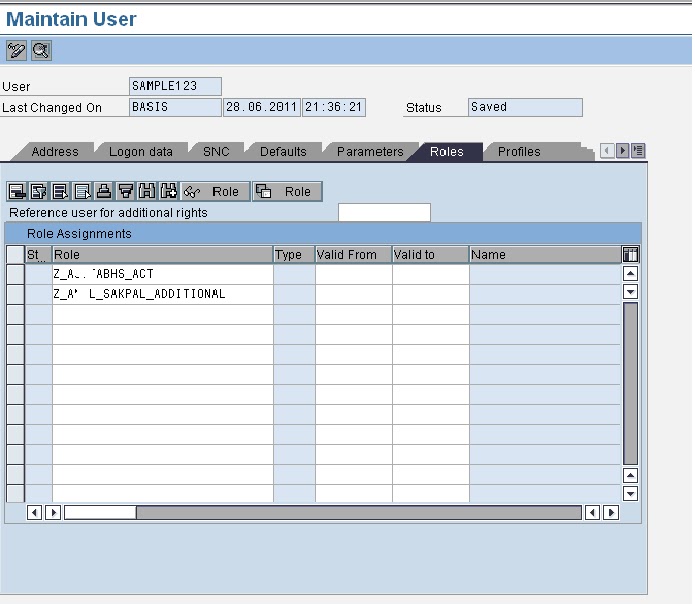


After assigning roles click on save to confirm the same.

To assign profiles, navigate to Profiles tab as shown below and assign profiles by selecting the desired profile from dropdown or by directly entering the profile name and click on save to confirm the changes.

These roles or profile assignments will become active for the user in the next logon to SAP.


How to remove roles or profiles to a user in SAP

Goto SU01 and enter the user id of the user for which role or profile to be deleted.

Select the role or profile to be deleted and press highlighted button to delete the same and press save to confirm the change


Goto profile tab and select the profile to be deleted and press delete button (highlighted) to delete the same. Press save to confirm the change


Enter your email address:

Delivered by FeedBurner


How to lock or unlock multiple users in SAP ?

This article answers following queries :


  • How to lock multiple users in SAP ?
  • How to unlock multiple users in SAP ?
  • How to reset password for multiple users in SAP ?
  • How to create multiple users at once in SAP ?
  • How to delete multiple users at a time in SAP ?
---------------------------------------------------------------------------------------------

How to lock multiple users in SAP

Login to SAP system in which you would like to lock users

Goto SU10 transaction code and enter the user ids that are to be locked as shown below.

Click on select all icon to select all the users that are to be locked.


Once selected click on lock icon as below


All the users will get locked and similar screen as below will be displayed


How to unlock multiple users in SAP

Enter all the users that are to be unlocked in SU10 transaction as below


Select all user ids that are to be unlocked and Click on Unlock icon. It unlocks all the ids and displays output similar to below screen


How to reset password for multiple users in SAP

In SU10 transaction, please provide user ids for which you would like to reset the password and select all and click on reset password icon as below :


Click on generate password icon in the above screen. Then a message appears in the same window that Initial password (Set by administrator).

Click on tick button so that SAP automatically generates passwords to all the users as below:


After this the password mentioned in the above screen can be communicated to the respective user. System prompts the user to change the password on his first logon.


How to create multiple users at once in SAP

In SU10 transaction, enter the user ids that are to be created at once


Click on create icon to get the below screen


In the above screen, click on Save button which displays below screen.
Click on Yes to confirm the creation


After that, following screen will be displayed with the users created and the default password generated by the system.

The password defaults can be communicated to user and system prompts him to change password on his first logon


How to delete multiple users at a time in SAP

After entering the user ids that are to be deleted in SU10 transaction, click on delete icon :


Confirm deletion of 6 users by pressing Yes in the above screen.

Screen similar to below screen will appear confirming user ids that are deleted


Enter your email address:

Delivered by FeedBurner


Monday, 27 June 2011

How to lock or unlock users in SAP ?

This article answers the following queries :
  • What are the business requirements to lock or unlock users in SAP system?
  • How to lock or unlock users in SAP ?
  • How to change user Password in SAP?


Business requirements to lock or unlock/reset the password in SAP

1) Sometimes, users forgot the userid or password and try to login with wrong credentials. After 3 or more unsuccessful attempts, user id will get locked with the message to user "user id locked due to x unsuccessful attempts.Contact system administrator".

User complains that his user id got locked and he is not able to login. So, administrator has to unlock his user id and reset the password if required. (Please follow below procedure to do the same.)

2) When Basis team is carrying out critical activities like client refresh, support pack upgrade etc, it is recommended to lock all the users (donot lock some system users which are required by administrator) to restrict them to access the system till the activity is complete. Once the activity is complete, administrator can unlock all the earlier locked users.

How to lock or unlock users in SAP ?

Goto transaction SU01


Click on Lock icon. It displays below message and informs the current state of the user (i.e locked or unlocked currently).

If you find message like “not locked” and you would like to lock, then click on lock button in the above screen again.

On the status bar, you can see message like “User SAMPLE123 is locked”

How to unlock user id in SAP ?

Provide the user id details and Click on lock button. Currently if user id is locked, it displays following message.

Click on unlock button  to unlock the user :


Then on the status bar, it displays message like “User SAMPLE123 unlocked, if this is permitted in this system”


How to change user Password in SAP ?

Click on password button to change the password :


Provide new password twice to set the password. Once user logs in to the system providing initial password, system prompts to enter new password for security reasons


Enter your email address:

Delivered by FeedBurner


How to delete a user in SAP?

This article answers the following queries

  • How to delete a user in SAP?
  • How to display user details in SAP?
  • How to modify user details in SAP?
  • How to create a user in SAP by copying from existing user?


How to delete a user in SAP?
 
Goto SU01 transaction in SAP as shown below.


Enter the name of the user to be deleted in the text box and click on delete icon


Click on Yes button in the above screen to confirm the deletion.


Please make sure you see status message “User TEST123 deleted” on the status bar


How to display or modify user details in SAP ?


     Provide the user name which you would like to display in the text name and click on display button to display and change button to modify user details. Highlighted change button in blue and display button in red in the above screen.


A screen similar to below will appear in both the cases. If you select display, you can only view the user details. If you select, you can modify the user details and save.


How to copy a user and create another user?


Click on copy icon(highlighted in above screen), it displays the following screen. Please provide the details of from which user to would like to create. Check all the tabs which you would like to copy and click on copy button to confirm the user creation


System displays following screen to set password. Please set password and save to create the user same as the existing user


Provide password and click on save to create the user


Enter your email address:

Delivered by FeedBurner


How to create a user in SAP ?

This article answers the following queries

How to create a user in SAP ?


Goto SU01 transaction in SAP as shown below.


Enter the name of the user to be created in the text box and click on create icon


Provide Title, Lastname and Language details as shown above and move to Logon data tab.

Please note, lastname is mandatory field in this tab.


Please provide User type and initial password details in this tab and click on save button to create the user.

A status message similar to below screen will appear in the status bar, if the user got created successfully.


Enter your email address:

Delivered by FeedBurner


How to compress or extract a SAR file ?

This article answers the following queries :
  • What is a SAR file ?
  • How to extract a SAR file in SAP ?
  • How to compress a SAR file in SAP ?
  • What is SAPCAR ?
----------------------------------------------------------------------------------------------

What is a SAR file ?

SAR files are  delivered by SAP for releasing supportpackages of Kernel and other OS level binaries.
 

How to extract a SAR file in SAP in Unix based operating systems(AIX / HP-UX ) :

Login to the Unix system with sidadm user

Navigate to the path where the SAR file is located and use following command

to extract a SAR file.

SAPCAR -xvf <filename.SAR>

Please find below example of extracting PIS_COFINS_604_20110311.SAR file extraction. 6 files got extracted from this  process


How to compress some files to generate a SAR file in SAP in Unix based operating systems(AIX / HP-UX ) ?

Login to the Unix system with sidadm user

Navigate to the path where the files that are to be compressed are located and  use the following command to compress a single SAR file.

SAPCAR -cvf <filename.SAR>

To compress multiple files, we can use the following command:

SAPCAR -cvf <compressed_filename.SAR> <file1> <file2> <file n>


Please find below screenshot where three files UMODPROT.T01, IMODPROT.T01 and CMODACT.T01 are compressed to form  king.SAR file.


What is SAPCAR ?

SAPCAR is an utility provided by SAP to compress or extract files (similar to winzip, tar etc)


Enter your email address:

Delivered by FeedBurner